Four steps: assign, update, prove, follow up
Credentra Task keeps every task moving through four simple steps, so nothing depends on someone remembering to chase it.
A breakdown repair, from call to closed
An air-conditioning service company, step by step. The same pattern works for an inspection, a court hearing or a monthly filing.
Customer care
A customer calls: the bedroom AC is not cooling. A service ticket is logged with the customer's details.
Service manager
Assigns the breakdown visit to a technician for this afternoon. It appears in the technician's jobs.
Technician
Starts the job on site. The location is recorded and shows the visit is at the customer's address.
Technician
Works through the checklist, records the gas pressure and adds before and after photos.
Customer
Signs on the technician's screen to confirm the repair.
Technician
Chooses the outcome Part replaced and completes the job. The photos, readings and signature stay with it.
Customer care
A feedback call for tomorrow is created as the next action, with a reminder.
Service manager
Sees the job completed with its proof, and the ticket closes once the feedback call is done.
What happens at each step
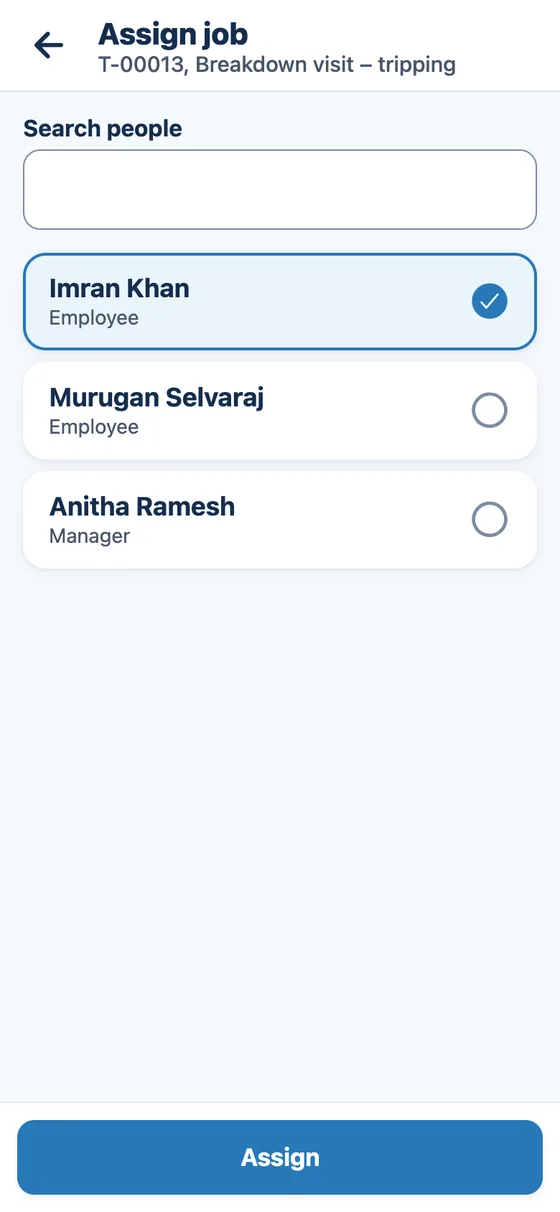
Step 1: Assign
Assign work to the right person
Choose who does it and when it is due. It appears in their list of jobs.
- One task or many at once
- Due date and time in your organisation's time zone
- See who is on leave before assigning
Step 2: Update
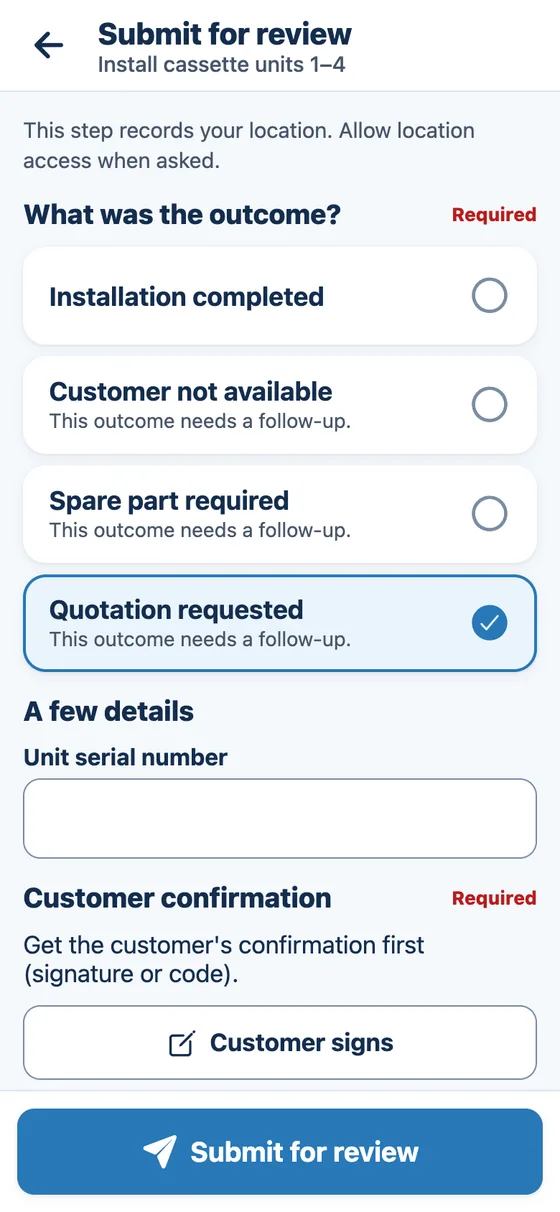
Record what happened
The employee picks the outcome from a short list. No long forms.
- Start, pause with a reason, or finish
- Outcomes from a short list you control
- Check-in location when the job starts, if you turn it on
Step 3: Prove
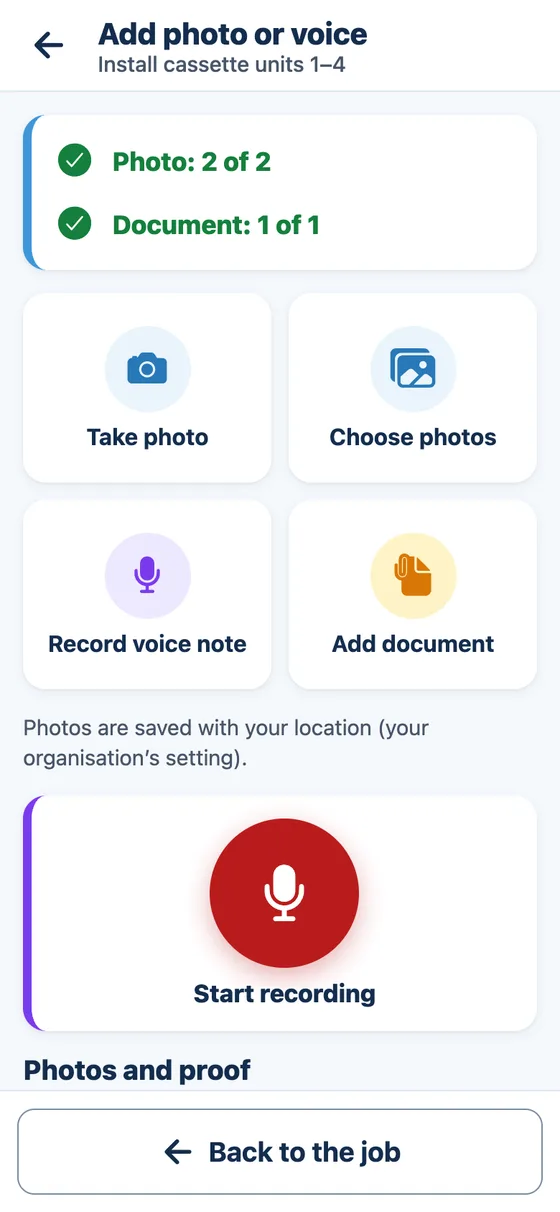
Attach proof when required
Photos, documents and voice notes stay with the task, with the time and place each photo was taken. Required proof must be added before the task can be finished.
- Photos, documents and voice notes, with the time and place of each photo
- The customer's signature or one-time code
- Approval before closing, for the work you choose
Step 4: Follow up
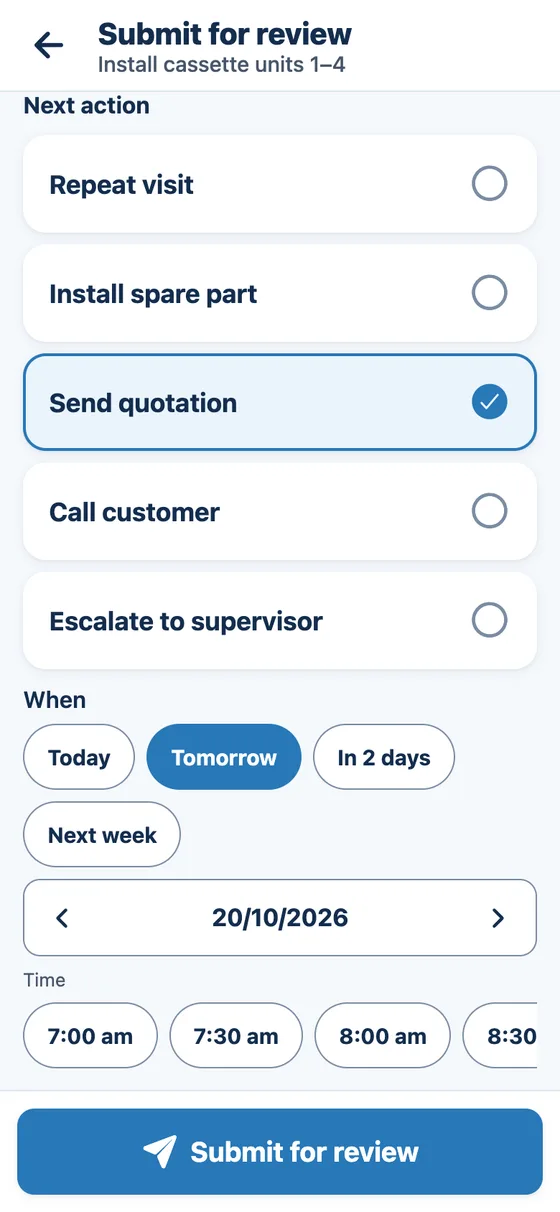
Create the next action and track it
Every next action gets an owner and a due time, with reminders until it is done.
- Next action, owner and due time
- Reminders, and escalation if it is missed
- Repeat visits created automatically


Common questions
Do employees need training?
Very little. The app shows the next job first, uses big buttons and plain words, and asks one question at a time when a task is updated. Most people learn it on their first job.
What happens if someone does not update a task on time?
Overdue work is marked in red for the person and their manager, reminders go out, and if you turn it on, late work and late follow-ups move to a manager or team lead automatically.
Can it follow our own process?
Yes. Your statuses, the steps between them, the outcomes people choose from, the proof each type of work needs and the checklists are all set up for your business, without custom software.
Can repeat visits be created automatically?
Yes. For maintenance contracts and other regular work, you set how often a visit repeats, and each visit is created as a task before it is due.
What counts as proof?
Photos, documents and voice notes added to the task, plus the outcome chosen, checklist ticks and readings entered. It also includes the location and time of each photo, and the customer's signature or one-time code. You decide which work needs which proof, and a task cannot be finished until required proof is added.
Ready to Get Better Visibility Into Your Work?
See how the platform can fit your team's workflow.